5. Connect Telegram
Link a Telegram chat to your organization so documents sent there are processed as yours. You can also send documents through your organization's private email address.
Admin only. Go to Settings → Channels (/settings?panel=channels).
Each person who will send documents needs their own Telegram account and their own connect link.
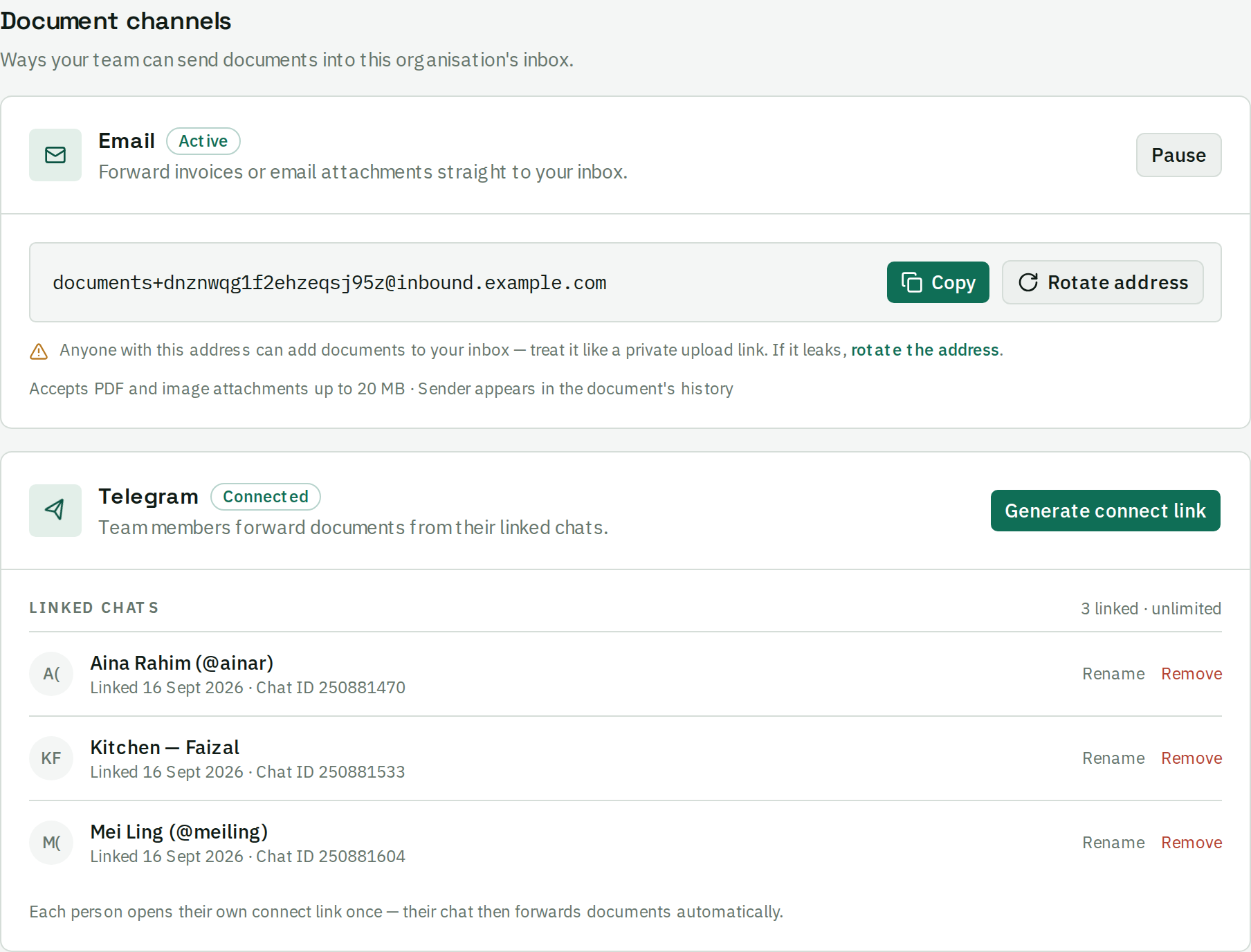
Link a chat
- Click Generate link. You get two things: a
t.me/…link, and a/start …command. - Send both to the person who will be sending documents.
- They open the link, which opens a chat with the beres bot, and tap Start.
- The bot replies: "✅ Connected. Send your order documents (PDF or photo) here."
- The chat now appears in your linked-chat list.
If tapping the link does nothing
This is the most common snag, and it is a Telegram behaviour, not a fault.
Telegram only sends the connect code the first time you ever start a bot. If that person has started the beres bot before — even for a different organization, even months ago — tapping the link opens the chat but sends no code, and nothing happens.
The fix: have them paste the /start … command into the chat and send it as a message. That always works. This is why the panel gives you the raw command alongside the link.
If they send a bare /start with no code, the bot explains this and asks for the full command.
Link rules
- A link is single-use and expires 15 minutes after you generate it. The panel says so beside it. Generate it when the person is ready to tap it, one per person; a used or expired link gives "⚠️ That link is invalid or expired — ask your admin for a new connect link."
- One chat belongs to one organization. Trying to link a chat that is already linked elsewhere gives "⚠️ This chat is already linked to another organization. Ask an admin to unlink it before linking it again." An admin of the other organization must remove it first.
- Your plan caps how many chats you can link. Past the cap: "⚠️ Your organization has reached its limit of N linked Telegram users. Ask your admin to remove one before linking another." Remove an unused chat or upgrade.
Manage linked chats
The panel lists every linked chat with the sender's name and username, captured automatically on first link.
- Rename — give a chat a label that means something to you, like "Kitchen — Ah Meng". Your rename sticks; a later re-link never overwrites it.
- Remove — unlinks the chat. Documents already received are kept. That person can no longer send new ones until re-linked, and the slot frees up against your plan cap.
It must be a direct message
The bot must be messaged directly, one-to-one. Posting documents into a Telegram channel does nothing at all — no reply, no error. Groups need the bot's privacy mode turned off and are not the supported setup. Use a private chat with the bot.
Check it worked
Have the person send one document. Within a moment the bot should reply "📥 Received. You can send the next document.", and the document should appear in your Inbox. That reply is the only one they get on success — results are read from the Inbox, not the chat.
Nothing at all? See I sent a document and nothing came back.
Setup is done. Next: Send a document.