6. Invite your team
Add the people who will send and review documents. Admin only, at Settings → Organization (/settings?panel=org).
The two roles
| Admin | Reviewer | |
|---|---|---|
| Inbox and Documents | ✅ | ✅ |
| Review, export, push | ✅ | ✅ |
| Master data | ✅ | ✅ |
| Inbox alert settings | ✅ | ✅ |
| Organization and members | ✅ | ❌ |
| Channels — view the document email and linked chats | ✅ | ✅ |
| Channels — generate links, unlink chats, pause or rotate the email | ✅ | ❌ |
| Export target and credentials | ✅ | ❌ |
| Workflow | ✅ | ❌ |
| Billing and plan | ✅ | ❌ |
Reviewer is the right default. It covers the entire daily job — receiving, reviewing, and exporting documents, plus keeping master data current — without exposing billing or the settings that would break the pipeline if changed by mistake.
Make someone an admin when they need to manage the plan, document email, Telegram chats, or export target.
Panels a role can't use aren't shown at all, so a reviewer won't see Billing & plan, Export target, Workflow or Organization in their Settings nav. Their nav is Master data · Channels · Inbox alert.
Channels is the one panel a reviewer sees but cannot change. They need to know where documents come in — the document email address, which chats are linked — to do their job, but they cannot rotate the address, pause it, or unlink a teammate's chat.
Master admins
A master admin has admin access to every current and future company in the same organisation group. Master admins can invite another master admin from Organisation, or promote an existing company admin there. Company admins can invite admins and reviewers for their own company, but cannot grant master-admin access.
Only grant this role to someone who should control every company, including each company's settings, members, and billing. Use a company role if they only need one company.
Promote an existing company admin
- Open Organisation → Master admins.
- Select a company admin under Promote an existing admin.
- Review how their access will change, confirm the warning, and select Promote to master admin.
The change is immediate and replaces their per-company admin role with group-wide access.
Invite a master admin by email
Under Or invite by email, enter their email and send. They must open the link while signed in with that exact email address. The invitation expires after 48 hours and can be revoked while pending.
An account cannot become a master admin if it already belongs to another organisation group or has active access to a company outside this group.
Remove a master admin
Open the actions menu beside their name and select Remove master admin. Their previous company roles are restored, while access granted only by the master-admin role is removed.
An organisation group must always keep at least one master admin. Add or promote a replacement before removing the last one.
Invite someone
- Enter their email and pick a starting role.
- Send. They get an email with a link.
- They sign in — or sign up, if new — and land in your organization.
Tell new people not to create their own organization at signup. That gives them a separate empty one, and is the most common onboarding mistake. They should accept the invitation from the email instead.
Invitations are single-use and expire. Pending ones are listed with resend and revoke.
Manage members
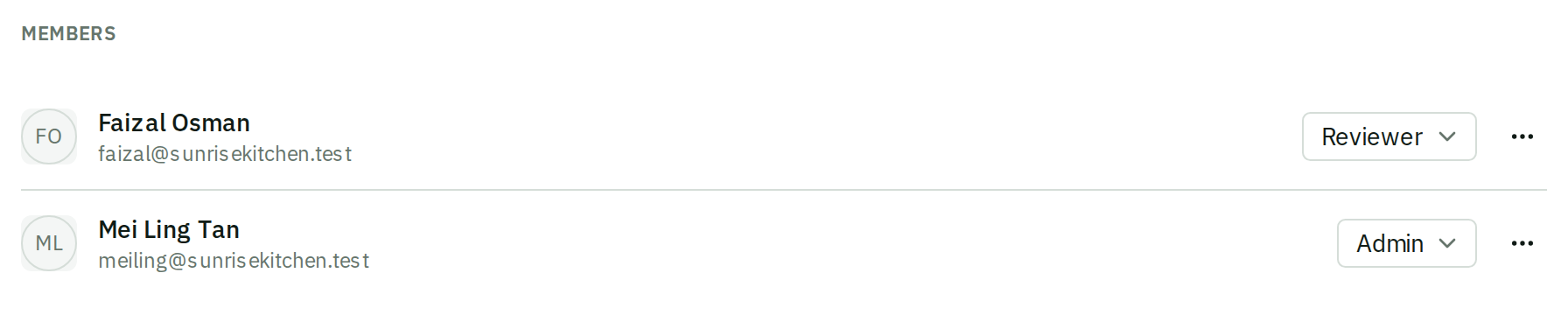
- Change role — promote a reviewer to admin, or demote.
- Suspend access — turn off someone's access without deleting them. They land on an "Access suspended" screen and can only sign out. Use this when someone leaves; it's reversible.
- Restore — undo a suspension.
- Remove — take them out of the organization.
The rule that will catch you
Your organization must always keep at least one active admin. Removing, suspending, or demoting the last one is refused with "An organization needs at least one active admin."
This bites when an admin leaves the company. Promote their replacement first, then remove the departing admin.
Sending documents is separate from membership
Being a member does not automatically link someone's Telegram chat. Each Telegram sender needs their own chat linked — see Connect Telegram. Email senders only need the organization's private document email.
Sending and app access are separate. Someone can send documents by email or Telegram without a beres login, and someone can review in the app without sending documents. Give each person only what they need.