Inbox and Documents
Two screens for two jobs. Inbox is your daily worklist; Documents is the full record.
Home (/dashboard)
Your starting point — the first item in the sidebar. Three cards — Blocked, Needs review, Processed — each linking straight into the matching filter on Documents. A usage meter shows pages used against your allowance this billing period, and recent activity shows what's arrived lately.
On a new organization you'll also see the setup checklist, which disappears once all three steps are done.
Inbox
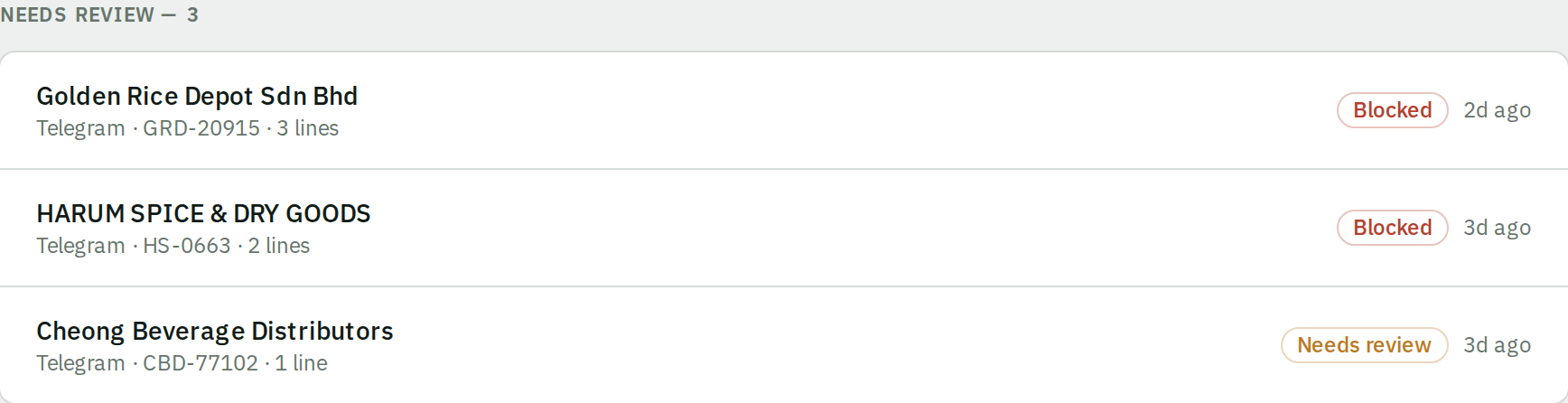
Deliberately short. Two lists:
- Needs review — everything waiting on a person, both Needs review and Blocked. This is your queue.
- Recently processed — what recently reached your accounting system, so you can confirm the loop closed.
Click any row to open it in the review workspace.
Work the Inbox until Needs review is empty. That's the whole daily routine. If you only use one screen, use this one.
Documents
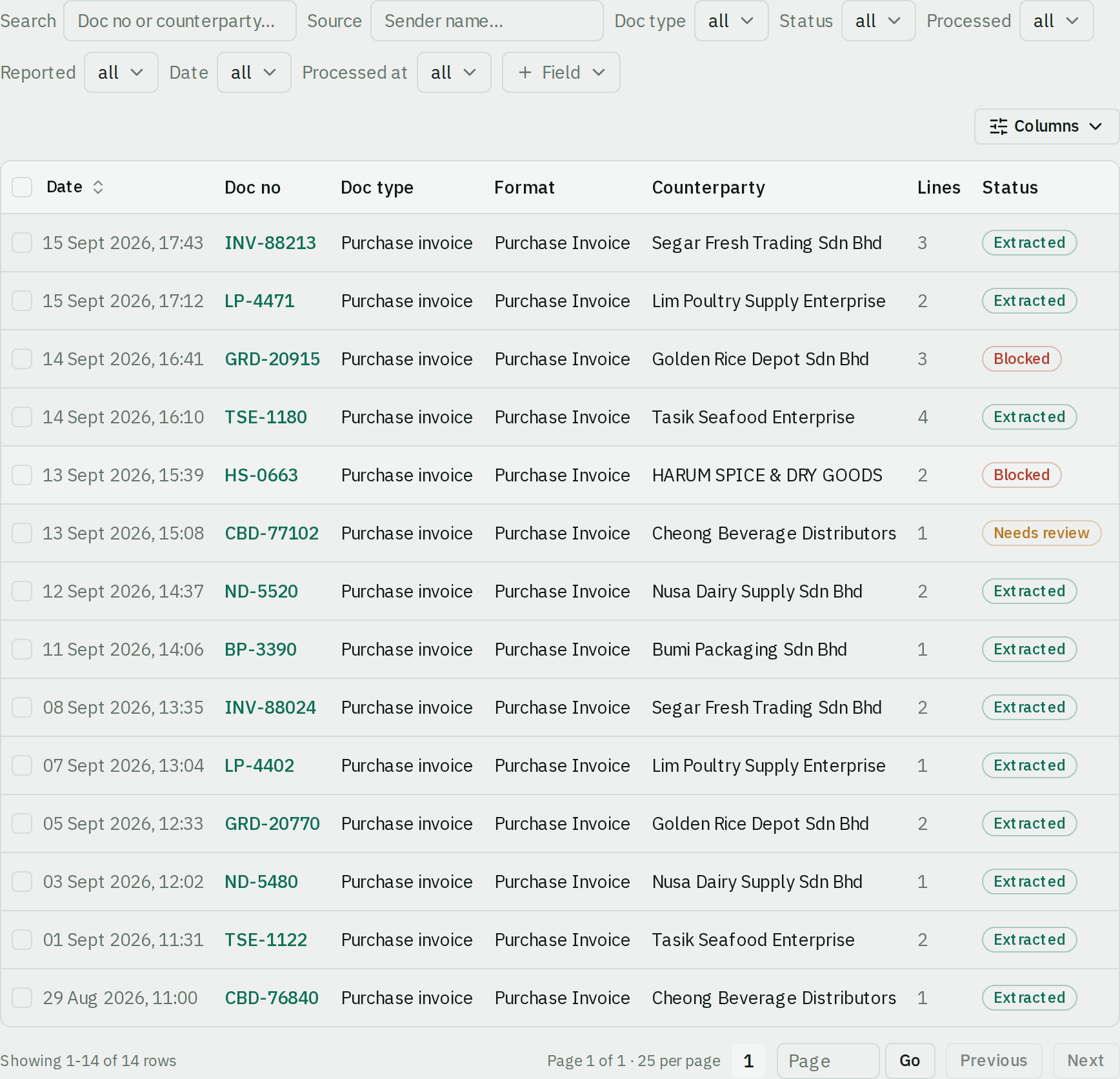
Everything ever received, with the tools to find things.
- Search by document number or supplier.
- Sort any column.
- Filter by status — the chips for Blocked, Needs review, and Processed match the Home cards.
- Filter by source, document type, whether it's processed or reported invalid, and by date received or date processed.
- Add a field filter to narrow by the optional columns you set up — project, area, GL account, a date column. Where a column has a controlled list, the filter is a picker of those exact codes, so it can't disagree with what the review screen offers. Remove one with the ✕ beside it.
- Show or hide columns to suit what you're doing. When your accounting system has more than one document format, a Format column shows which one each document is set to.
Selecting several at once
Tick the documents you want. For a review batch, click Prepare for export. They open together in one review workspace — much faster than opening them one at a time, especially for several invoices from the same supplier where you can apply one code across the whole group.
Up to 100 documents per batch.
Prepare for export is offered when your accounting system can produce an import file. On a push-only system such as AutoCount Cloud it isn't shown — open documents from the Inbox instead and push from the workspace.
Automatic page merging
beres automatically detects when separate uploads belong to the same multi-page document and combines them. The Documents list then shows one row with a page-count badge.
Manual controls are for exceptions: select the rows and click Merge pages only when beres missed pages that belong together. If it joined unrelated documents, open the merged document and click Unmerge pages. See Correct an automatic page merge.
The Processed toggle
Each row has a Processed toggle marking whether the document reached your accounting system.
Generating an export file sets it automatically, but you can set it by hand — useful when you keyed a document in manually.
It only applies to cleanly extracted documents on file export targets. On API-push targets the push sets it and it isn't yours to change.
Which screen to use
| You want to | Go to |
|---|---|
| Do today's work | Inbox |
| Find one specific invoice | Documents, and search |
| Export a batch | Documents, select, Prepare for export |
| Correct a missed or incorrect page merge | Documents for manual merge; review workspace for unmerge |
| Check what's outstanding overall | Home |
| See if something arrived at all | Documents, sort by date |