3. Connect your accounting API
Lets beres talk to your accounting system directly — to push entries in, and to pull your master data down instead of importing CSVs by hand.
Admin only. Go to Settings → Export target (/settings?panel=target).
Skip this page if you only want to download import files and key them in yourself. Everything else works without API credentials.
API push is included on every current public plan. You still need valid credentials for the accounting system you connect.
Choose your integration
Open only the accounting system you use. The testing and saving steps below apply to every integration.
SQL Account eStream and ARAP
SQL Account credentials
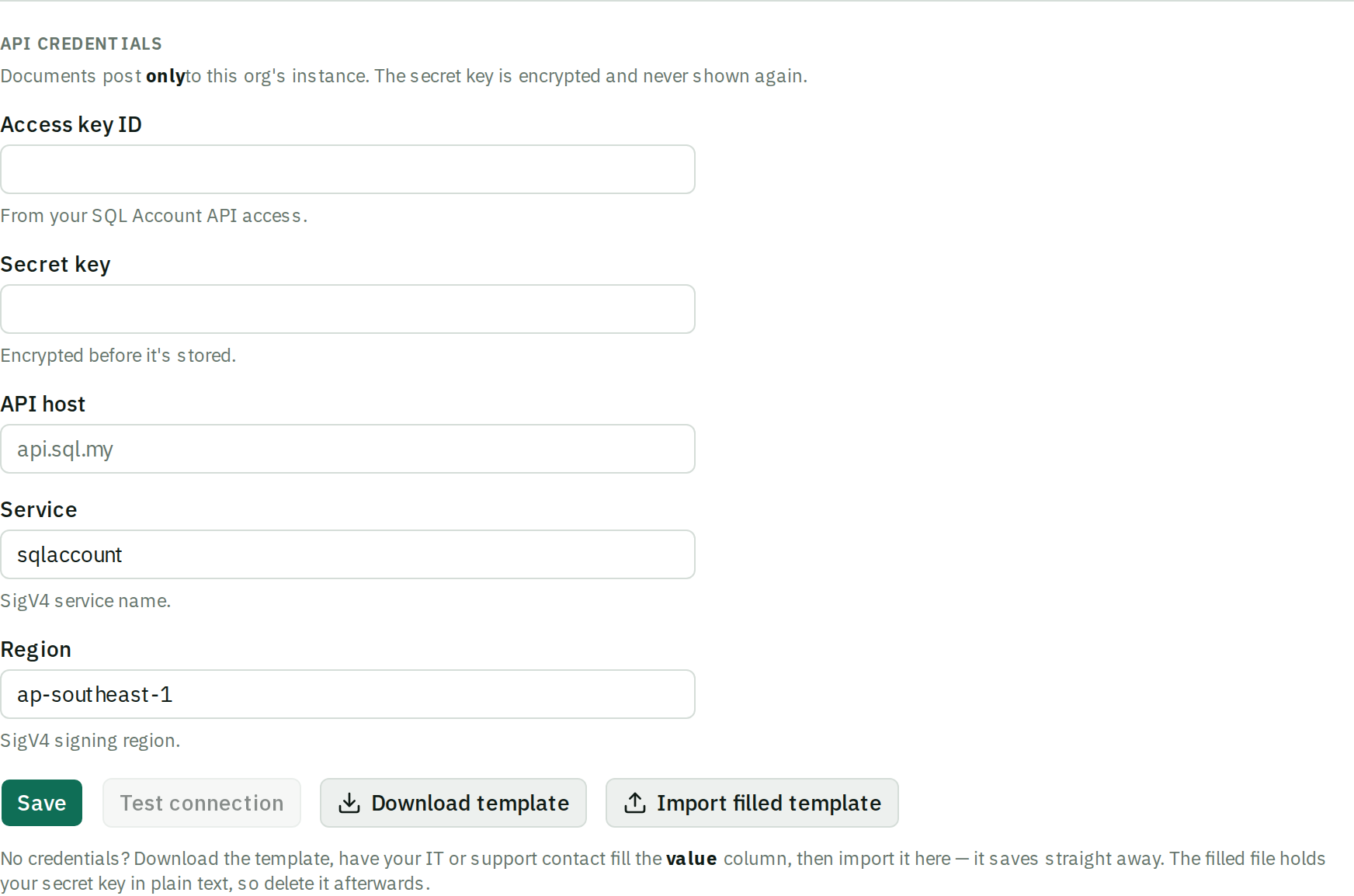
Enter these under Export target:
| Field | What it is |
|---|---|
| Access key ID | From your SQL Account API access. |
| Secret key | Encrypted before it's stored. Once saved, it is never shown again — re-enter it to change it. |
| API host | Usually api.sql.my. |
| Service | Leave as sqlaccount. |
| Region | Leave as ap-southeast-1. |
One SQL Account credential set serves both SQL Account targets. If you switch between eStream and ARAP you do not re-enter credentials.
Get the access key and secret from your SQL Account dealer or whoever administers your SQL Account API access — beres cannot generate them for you.
AutoCount Cloud Accounting API
AutoCount Cloud credentials
In AutoCount Cloud, go to Settings → API Keys. You need three values from that screen:
| Field | Where it comes from |
|---|---|
| Key ID | The Key ID column. |
| API key | The API Key shown next to the Key ID. Encrypted before it's stored. |
| Account book ID | The Account Book Id on the same screen (for example 65315). |
| API base URL | Leave the default https://accounting-api.autocountcloud.com. Change only for regional or on-premise hosting. |
AutoCount gives you a full Integration API Endpoint URL ending in your account book id. Enter the base URL without the trailing /<account book id>/ — the account book goes in its own field.
Test the connection
Click Test connection. This makes a real call to your accounting system.
| Result | What it means |
|---|---|
| Success | Credentials and host are correct. Save. |
| "Invalid credentials." | The key or secret is wrong. Re-copy both — a trailing space is the usual cause. |
| "Could not reach SQL Account at …" / "Could not reach AutoCount Cloud…" | Network or host problem, not a credentials problem. Check the API host / base URL spelling. |
| "Enter the secret key to test." | The secret is saved but not shown. Type it again to run the test. |
Then click Save. Testing and saving are separate on purpose, so you can verify a key before committing it — or re-verify one already saved.
On success beres offers to pull your master data there and then: "Connection OK — sync your master data?" Accept it and every list your system can serve — suppliers, stock items, chart of accounts, and any reference lists — is fetched using your saved credentials. It never overwrites a code someone confirmed by hand, and you can re-run it any time from Master data.
Credentials by file
If your dealer sends credentials in a file, use the credentials template import instead of typing. Download the template, have it filled in, and upload it — the form is populated for you. Two things to watch:
- "Ignored unknown field(s): …" — the file had columns beres does not use. Usually harmless.
- "Filled the form, but not saved — missing: …" — required fields were blank. Fill them in and save manually.
After connecting
Once credentials are saved and tested you can sync master data straight from your accounting system instead of exporting CSVs.
The same credentials serve every document format of that system. Configuring the columns for each format happens on the same panel, below — see Optional columns.
Next: Import your master data.